Video Is Here. Scheduling Got Faster. Here Is What Shipped.
MorningAI now supports text-to-video, frames-to-video, and a 10x faster social scheduling workflow. Here is what changed and how to use it.


MorningAI's latest release adds three video generation modes, a redesigned social content review workflow, and more control over how you export assets. The short version: you can now go from product to video in seconds, and reviewing and scheduling social posts takes a fraction of the time it used to.
These updates address the two biggest workflow bottlenecks we hear about: getting video content produced without a production team, and the overhead of reviewing and scheduling social posts one at a time. Here is what is new.
Video Generation
MorningAI now supports three distinct paths to video. All three are accessible from the Image and Text workspace under the Video tab.
Text to Video
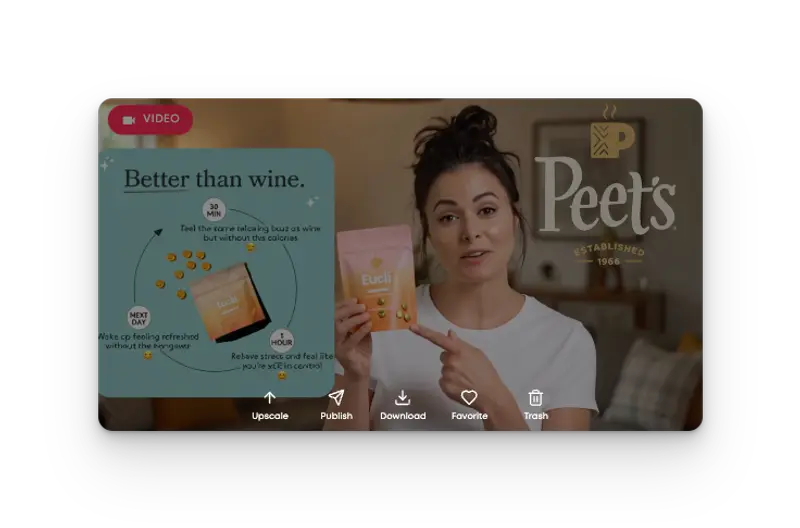
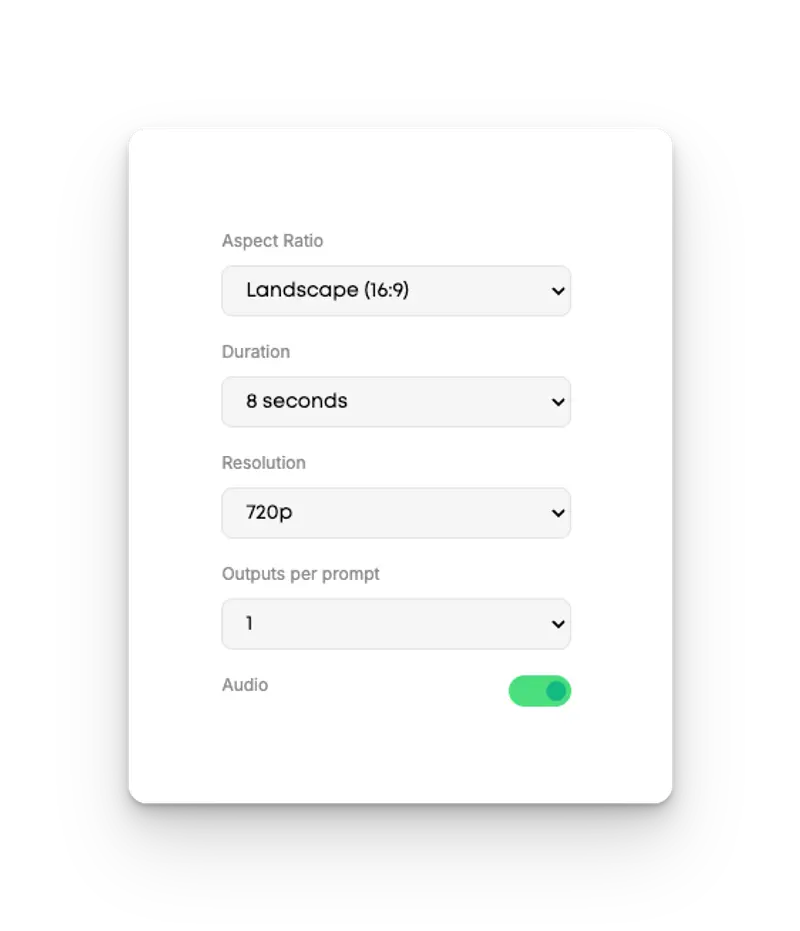
Write a prompt, select your audience, and generate a video. You can specify orientation (landscape or portrait), duration (up to 8 seconds), resolution (720p or 1080p), and audio on or off. You can generate up to 4 outputs per prompt. Once rendered, hover to preview, then upscale, publish, download, favorite, or move to trash directly from the output panel.
Frames to Video
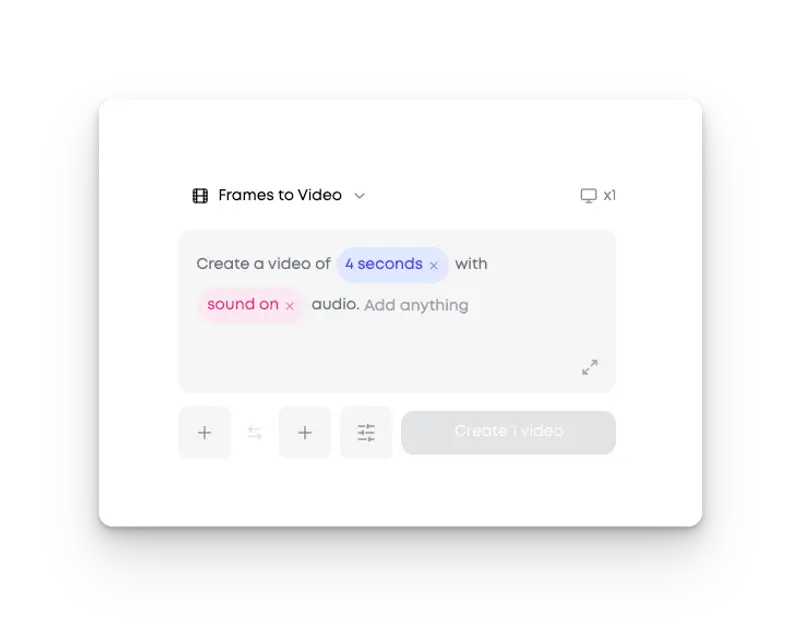
Start from any image and animate it into a video. Select a product, add context like a campaign theme or occasion, and MorningAI builds the video from that starting frame. Audio controls and product selection work the same as text to video. This mode is not limited to catalog products; any image works as the starting frame.
Like what you're reading?
See these ideas run on your own brand — book a demo and we'll show you MorningAI in action on your products.
Ingredients to Video
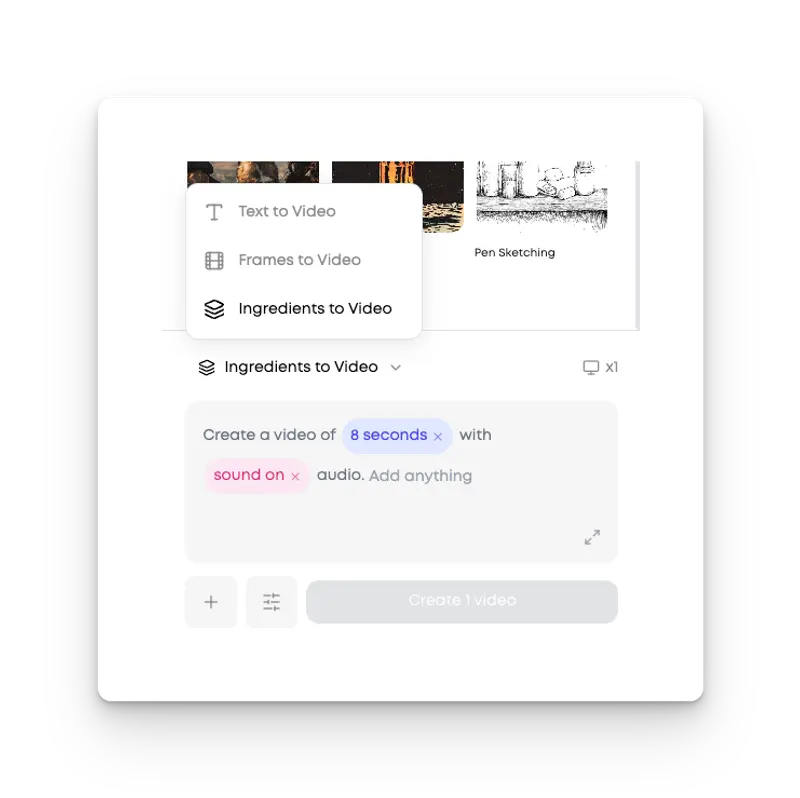
Similar to frames to video, but product-specific. Select a product from your catalog and MorningAI uses its attributes and visuals to compose the video. Useful when you want the output tightly tied to a specific SKU or product detail.
Social Media Review and Scheduling
The social content review workflow is rebuilt. Previously, reviewing and adjusting posts before scheduling required multiple separate steps. Now it is one continuous flow and it runs 10 times faster than before.
Click any piece of content from your dashboard to open a detailed view. From there you can see which product images were used, review the caption, write an alternative caption with additional direction, and move through all pending posts without closing the panel. The platform recommends optimal posting times automatically. You can also surface the original prompt that generated the post and use it to recreate or iterate on the content.
When you are ready to publish, you can schedule and post to multiple channels at the same time. No channel switching required.

Image Export Controls
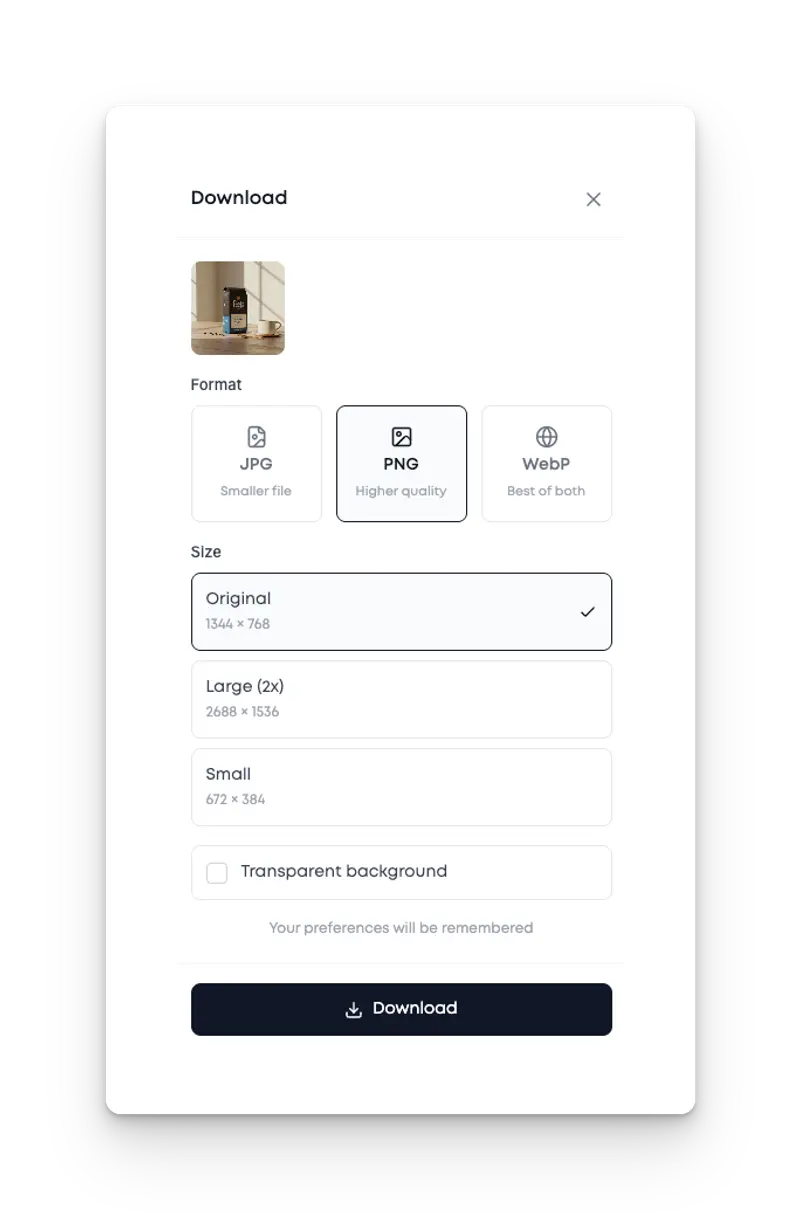
Downloading assets is more flexible now. When exporting images you can choose format (JPG, PNG, or WebP), size (original, large, or small), and whether to include a transparent background. Your preferences save automatically, so you are not re-selecting the same options every session.
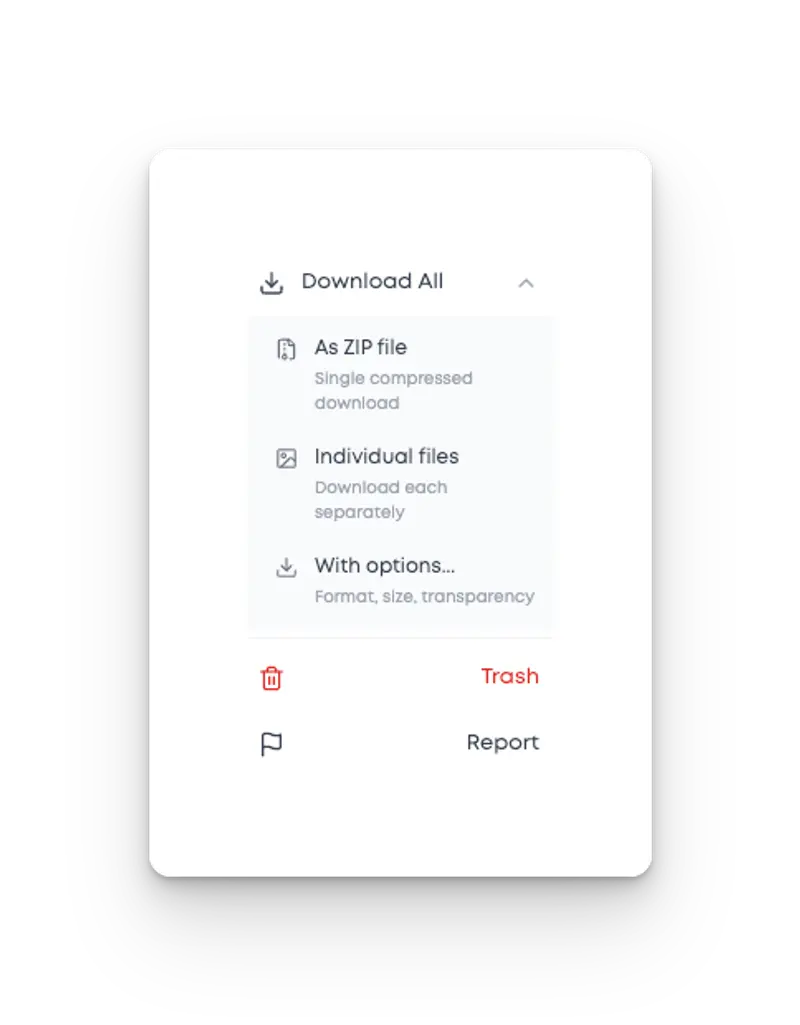
You can also download all images as a single ZIP file or pull individual files separately with different format settings per file.
Log in and try the updates

Related posts
October 5, 2026 Product Updates: Social Performance Analytics, Klaviyo Connector, and the Agent Sidebar
Channels shows how each post performed, and an Agent turns it into your weekly marketing review. Build Klaviyo campaigns from your brand. Ask the Agent from the sidebar.

September 28, 2026 Product Updates: New Frontier Models in Agents, Agent-Run CMS Publishing, and Tasks Built Into MorningAI
Access the latest models from Anthropic, OpenAI, and xAI, take CMS content end to end with Agents, and manage your team’s work in the new Tasks area.
September 21, 2026 Product Updates: Multi-Model Selection, Smarter Social Post Reviews, and Upgraded Image Creation and Editing in Agents
Agents now let you switch models by task, use recent social performance to improve upcoming posts, and generate a wider variety of images with more control over formats and edits.
