
How to Organize Folders Inside Files
Applies to: All workspace members with access to the Files sectionGoal: Keep your projects, images, briefs, and other assets neatly grouped so you can find them in seconds.
1. Open the Files area
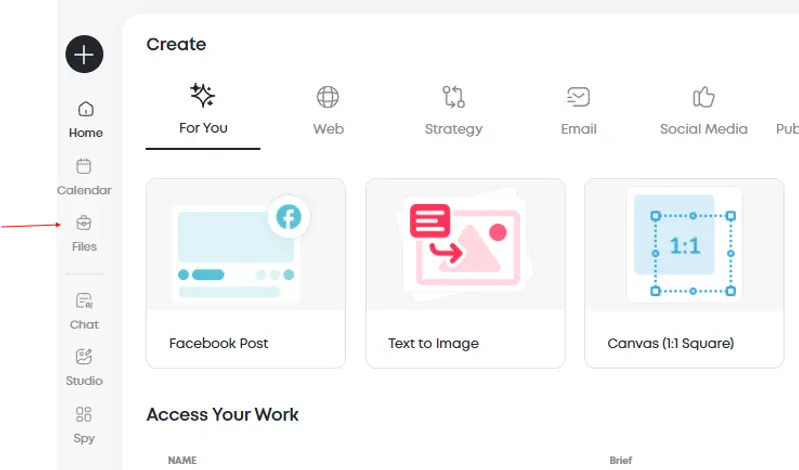
Navigate to your file management workspace:
- From the left-hand navigation bar, click Files (folder icon)
- The interface displays two main sections:Left panel – your folder tree, including My Files and any sub-foldersMain panel – the contents of the currently selected folder
2. Create a new folder
Set up organizational structure for your assets:
- In the main panel's toolbar, click New Folder
- A folder placeholder appears with an editable name field
- Type a descriptive name and press Enter
💡 Pro tip: Use consistent naming conventions such as "Campaigns – Summer 2025" or "Client Assets / Logos" to maintain clarity across your workspace.
3. Add sub-folders
Build hierarchical organization for complex projects:
- Double-click an existing folder in either panel to open it
- Click New Folder again to create a subfolder within the current directory
- Repeat as needed to create nested folder structures for teams, campaigns, or asset categories
4. Move items into folders
Choose the method that works best for your workflow:
Drag & Drop - Select any file or folder in the main panel and drag it onto a destination folder in the left panel
Cut & Paste- Right-click the file → Cut, then right-click the destination folder → Paste
5. Rename, delete, or share a folder
Manage your folder properties efficiently:
- Right-click the folder in the left panel
- Select your desired action from the context menu:Rename – Update the folder title for better organizationDelete – Move to Recently Deleted (recoverable for 30 days by default)Share – Grant access permissions to team members
6. Change how you view files
Customize your workspace display preferences:
- Click the View dropdown (located next to New Folder) to switch between Details, List, or Grid layouts
- Use the search bar at the top to instantly filter files by filename or content type
7. Use Smart Folders for quick access
Leverage built-in organizational features:
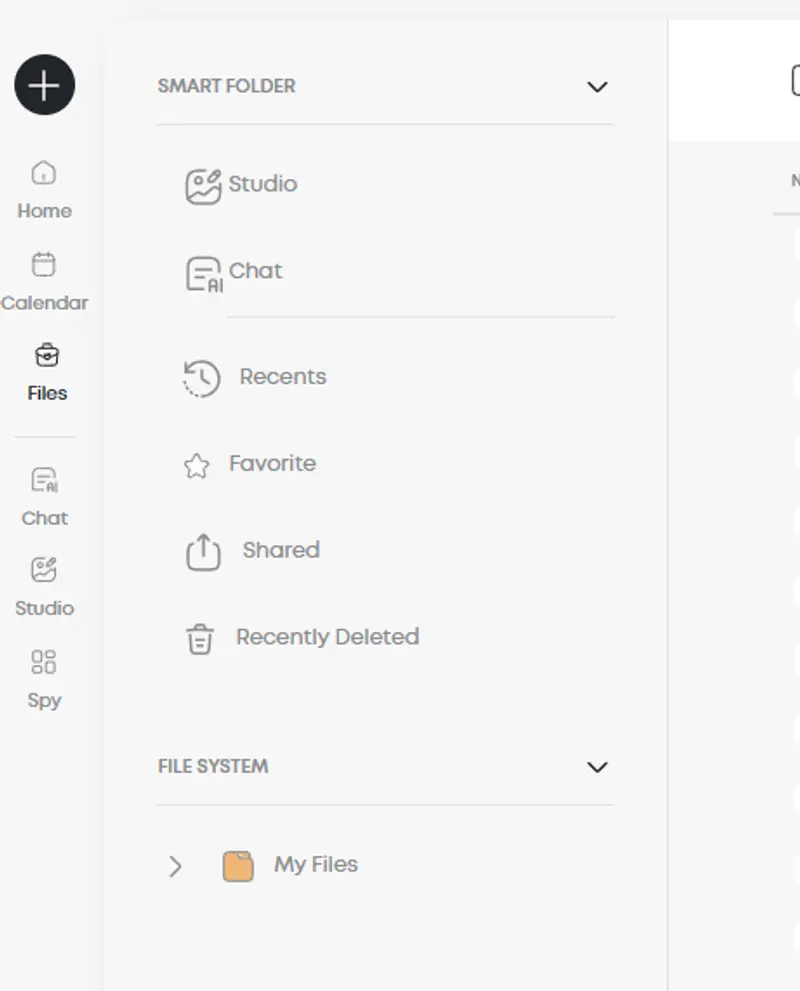
- Recents – Items you opened or edited most recently
- Favorites – Right-click any file/folder → Favorite to pin important items here
- Shared – Everything you've shared or that's been shared with you
- Recently Deleted – Restore accidentally deleted items or permanently remove them
Additional Tips
- Establish team guidelines for folder naming and organization to maintain consistency
By implementing these organizational strategies, you'll transform the Files section into an intuitive, efficient asset library that saves your team valuable time and eliminates the frustration of searching for misplaced files.

