November 23, 2026 Product Updates: Mailchimp Connector, Create Variations in Studio, and a New Look for Playbooks
Connect Mailchimp to the Agent, create a set of variations from one Studio image, and browse Playbooks in its new look.

This week, we added a Mailchimp connector that brings your email audiences and campaigns into the Agent. In Studio, Create variations turns one finished image into a whole set of variations in a single run. We also gave Playbooks a new look. You can browse by category, see what is popular and new, and open any playbook to see what you get before you start.
Here's what changed.
Connectors
Run your Mailchimp audiences and campaigns from the Agent
Mailchimp is now a connector in MorningAI. A brand admin connects it once under DNA → Connectors, and everyone on the brand can use it from the @ and + menus in the Agent.
With Mailchimp connected, you can ask the Agent to:
- Report on performance: see how your campaigns, audiences, automations and landing pages are doing, including the revenue from your store.
- Manage contacts: find, add and update contacts, and organize them with tags, segments and groups, one at a time or in bulk.
- Build campaigns: draft, copy and edit campaigns and templates in your brand's voice, run Mailchimp's pre-send checklist, and send yourself a test email.
- Send and schedule: send a campaign, schedule it for later, or take it off the schedule.
- Use images from the conversation: ask for a banner and have it placed at the top of a campaign.
The Agent shows an approval card before it changes anything in Mailchimp.
For example, you can ask:
"Read the Holiday campaign brief in Notion and build it as a Mailchimp campaign for our Newsletter audience. Put the banner from above at the top and send me a test."

Your Mailchimp results also appear in Performance → Email, with recipients, open rate, click rate, unsubscribes, bounces and revenue for each campaign. If you use both Klaviyo and Mailchimp, each one has its own labelled row.
Studio
Create variations in Studio
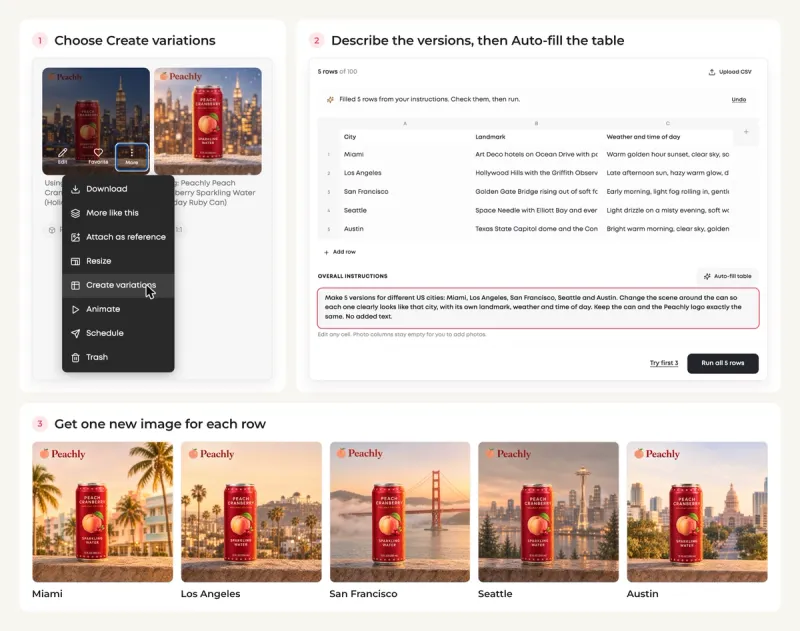
Studio has a new way to work with a finished image. Create variations takes one image and makes many edited versions of it in a single run.
Hover over any finished image in Studio and choose More → Create variations.
- Set up the table: add a column for each thing you want to change, such as City, Headline or Photo. Each row is one new version, with up to 100 rows in a run.
- Let Auto-fill write it: type what you want in Overall instructions, click Auto-fill table, and the columns and rows are filled in for you. You can also upload a CSV you already have, or add a photo to each row.
- Try it, then run it: Try first 3 makes the first three rows for a quick check. Run all makes the rest.
For example, you can:
- Localize by city or region: place the same product in Miami, Los Angeles, San Francisco, Seattle and Austin.
- Design for each season: dress one product shot for Halloween, Thanksgiving and Christmas.
- Show different occasions: set the same product at a weekend brunch, a beach day and a holiday dinner.
- Test different headlines: keep the picture and change the headline or the offer on each version.
Like what you're reading?
See these ideas run on your own brand — book a demo and we'll show you MorningAI in action on your products.
Playbooks
A new look for the Playbooks page
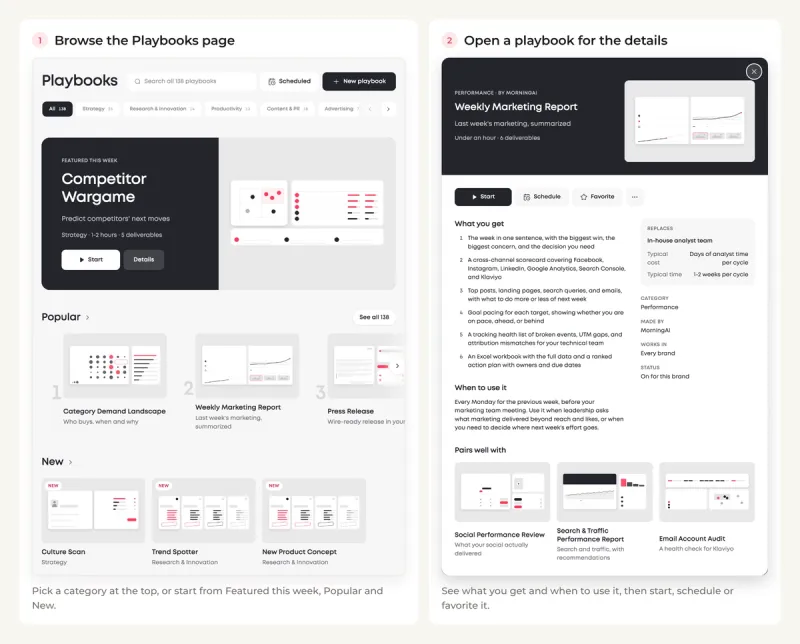
The Playbooks page has a new layout made for browsing. Categories run across the top, and the page is organized into rows you can scroll through.
- Featured this week: one playbook highlighted at the top of the page, with a new pick every week.
- Popular and New: the playbooks teams run the most, and the latest additions.
- Quick wins: playbooks you can finish in a short session.
- Favorites and Made by your team: the playbooks you saved, and the ones your own team built.
Click any playbook to open its detail panel. The panel shows What you get, When to use it and What it replaces, and you can Start, Schedule or Favorite the playbook from there.
Playbooks is also in the sidebar. You can click it there to open the page directly.
Also in this release
- GPT Image 2.6 in Studio: Studio images are now made with GPT Image 2.6, the latest image model from OpenAI, as we keep improving image generation in Studio.
- Channels is now called Performance: The Channels page in the sidebar has a new name. Your social, email and web results are all still there.
- Preview a product import: When you upload a CSV file to ProductDNA, preview which products will be created or updated before anything is saved, and download a report when the import is done.
Try the Updates
Log in to MorningAI to try this week's updates. If something feels off or you run into an issue, let us know. We read every message.
– The MorningAI Team

Related posts
November 16, 2026 Product Updates: HubSpot and Apollo Connectors, Knowledge Base in DNA, and Live File Preview
Connect HubSpot and Apollo to the Agent, keep your brand's documents in the new Knowledge Base tab, and preview files while the Agent builds them.

November 9, 2026 Product Updates: Team Access Control in Settings and Related Playbooks for Every Workflow
Set what each teammate can access across your organization and brands with Team Access Control, and see which playbooks work together in the new Related playbooks section.
November 2, 2026 Product Updates: Upgraded Image Generation in Studio, @Mention Preview in Calendar, and GPT-6.1 Sol & GPT-6.1 Terra in Agents
Studio turns one prompt into several creative concepts at once, Calendar adds a Mentions panel that previews each tag by platform, and Agents adds two new OpenAI models.