
Browse Tasks
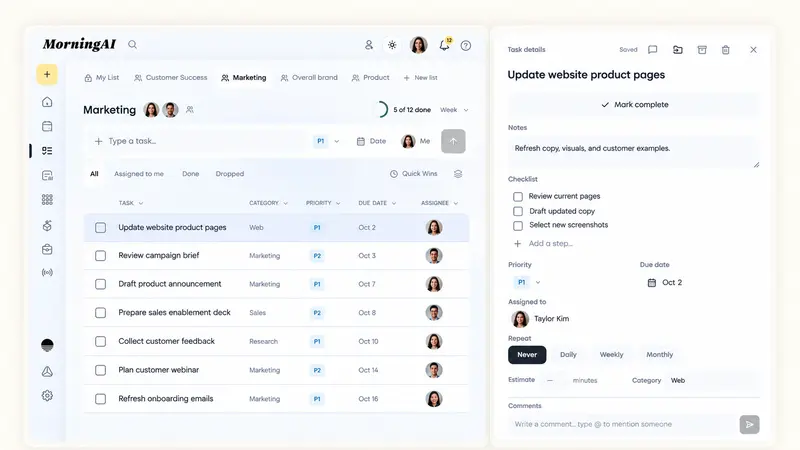
Tasks is the to-do list that lives next to the work. You get a private list of your own and shared lists for the team, each task with an owner, a priority and a due date, and what is due shows up on Home every morning. The Agent can work the same lists from the sidebar.
Lists
Open Tasks in the side menu. The tabs across the top are your lists:
- My List is private to you.
- Shared lists carry the names of the people in them. Anyone in the list sees every task and every update.
Create a new list for a project or a customer, add the teammates who should see it, and keep personal reminders in My List.
Add a task
Type in the Type a task box, then set the details before you press Enter: a priority (P1 to P3), a due date, an assignee (you or a teammate) and, under Details, a category. Open any task to add:
- a checklist of steps,
- a repeat rule for work that comes back every week or month,
- comments, with @mentions to pull a teammate in.
Updates show for everyone in the list as soon as they happen.
Work the list
- Filter the list to All, Assigned to me, Done or Dropped.
- Sort by task, category, priority, due date or assignee from the column headers.
- Select several tasks to move or update them at once.
- The counter in the top-right shows how much of the day, week or month is done. Switch the period to see progress at the pace you plan in.
Due today, on Home
Home opens with Due today, with overdue tasks first, so you don't have to open Tasks to know what needs attention. If you don't see it, open Customize home and switch the section on. See How to Customize Your Home Page.
Ask the Agent
The Agent sidebar sits on the left of the Tasks page. Ask it in plain language:
- "Plan next week's launch as tasks."
- "What's overdue, and who owns it?"
- "Move everything overdue to Friday."
It proposes the change on an approval card, and the list updates when you approve. See The Agent Sidebar and Approval Cards.
Frequently Asked Questions
Can teammates see My List?
No. My List is yours. Put anything the team should see in a shared list.
Can the Agent create or change tasks on its own?
It proposes, you approve. Every change the Agent makes to a list appears as an approval card first.
What happens to a repeating task when I mark it done?
The next occurrence is created on the repeat schedule you set.
Where do dropped tasks go?
Into the Dropped filter, out of the main list but not deleted.
Next Steps
Create one shared list for the work that is live this month, then ask the Agent on Home each morning what is overdue. For the rest of the workspace, see A Tour of the MorningAI Workspace.
