
Browse Files
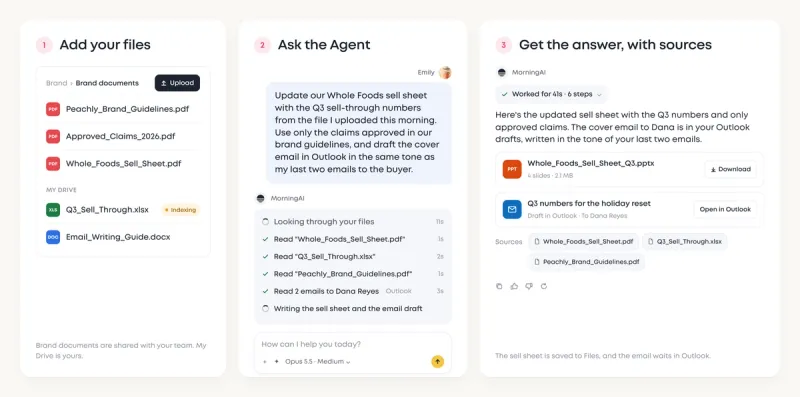
Files is where everything you upload and everything the Agent and Studio make ends up, per brand, in your own drive and in drives you share with the team. It is also what the Agent reads: it searches the files you can access and cites the ones it used. This page shows how Files is organized and how to find, share and download what is in it.
Where things live
| Place | What is in it |
|---|---|
| My Drive | Your files and folders. Only you see them unless you share. |
| Shared Drives | Team drives. Everyone in the drive sees everything in it. |
| Knowledge Base | A shared drive every brand gets automatically, for the documents all agents read. It is the same drive as DNA → Knowledge Base, and it can't be renamed, moved or deleted. |
| Smart Folders | Views across both: Recents, Favorites, Shared with Me, Published (files you have shared by public link), Uploads, Retouched (edits made in Studio) and Recently Deleted. |
Files is scoped to the brand you are in. Switch brands and you see that brand's files.
Find a file
- Search at the top looks at names and metadata. Press ⌘K or Ctrl+K from anywhere in Files.
- The type tabs narrow the view: Images, Video, Audio, CMS Docs, Emails, Agents, Social Media, Docs, Folders and Other. The Agents tab holds what the Agent produced in conversations.
- Add Filter and the sort menu refine further, and the view toggles switch between list, details and grid.
Upload and organize
Click Upload to add files, or drag them in. New Folder creates a folder in the drive you are in; drag files between folders to move them. Right-click a file or folder to rename, favorite, share or delete it. Deleted items sit in Recently Deleted for 30 days before they are removed.
Share
- With your team: share a folder or file with teammates and choose View, Comment or Edit access. Shared Drives share everything in the drive with everyone in it.
- With anyone: share a single uploaded or Agent-generated file by public link, without sharing the conversation or folder around it. The Published smart folder lists every file you have shared this way, and you can turn a link off at any time.
Download
Open a file and click Download, or select several files and folders and choose Download from the selection bar. Larger downloads are prepared in the background and you get a notification when the archive is ready.
What the Agent can see
The Agent searches and reads the files you can access in the current brand, personal and shared, and lists its sources in the reply. Documents in Knowledge Base are read by every agent in the brand, so keep guidelines, policies and price lists there. The Agent can also edit or convert a Word, Excel, PowerPoint or PDF file you uploaded, such as turning a doc into a PDF. Every result is saved as a new file next to the original, so the original stays as it was. To point it at one file, attach it with + in the composer. See What Agents Know.
Edit PDFs and decks
Files made in Agents, including PDFs and presentations, can be edited without leaving MorningAI. See How to Edit PDFs and Decks with the File Editor.
Frequently Asked Questions
Why can't the Agent find a file I uploaded?
Check the brand you are in and whether the file is in your drive or a shared drive you belong to. The Agent only sees what you can see in Files.
Can I get a deleted file back?
Yes, within 30 days, from Recently Deleted.
Where do Studio images go?
Into Files under the Images tab, and edits made in Studio appear under Retouched.
Is a public link private?
Anyone with the link can open the file until you turn the link off. Use team sharing for anything that should stay inside the company.
Can I rename or delete the Knowledge Base drive?
No. Every brand keeps its Knowledge Base drive. You can add, rename and delete the files and folders inside it, depending on your role.
Next Steps
Move the documents every agent should know about into Knowledge Base, then try a request that leans on them: "update the sell sheet with the prices from our price list."
