
Browse Agents
MorningAI Agents don't stop at text. In the same conversation they create images, build complete documents, render charts from your live data, and even build small interactive tools. This guide covers each one and how to iterate on what comes back.
Images
Ask for images the way you would brief a designer. The Agent uses your product details, colors and tone, and you can:
- Generate up to 20 images in one request, with different styles and concepts, then compare them in a gallery
- Get the right aspect ratio by naming the channel or the format
- Edit a selected image in chat, changing specific details while keeping the rest
For example: "Create 10 ads for our peach sparkling water, with different looks for different audiences." Pick a favorite, then ask for a beach background and versions for an Instagram Story and an email banner.

Documents
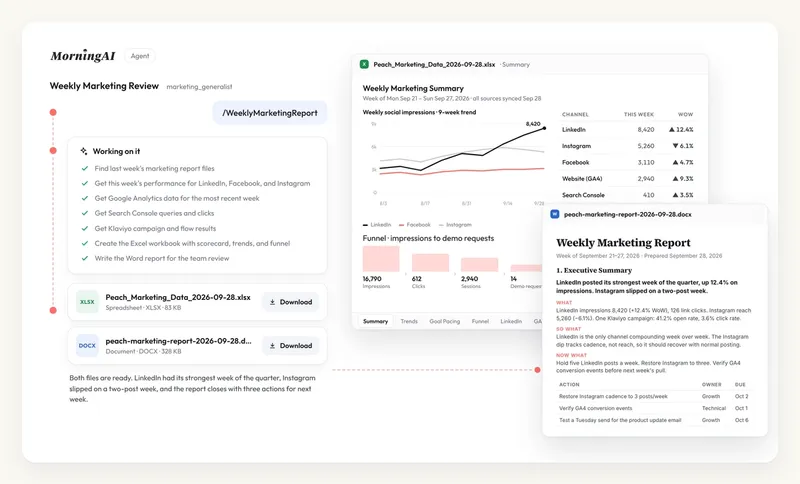
Ask for a deck, a proposal, a report or a spreadsheet and a live file card appears while the Agent builds it. The finished file previews beside the thread, downloads from the card, and lands in Files.
| Format | Best for |
|---|---|
| Proposals, reports and one-pagers, rendered in your brand's visual style | |
| PowerPoint (.pptx) | Decks built slide by slide with real layouts and speaker notes |
| Word (.docx) | Briefs, plans and long-form documents |
| Excel (.xlsx) and CSV | Data exports with multiple sheets and summaries |
| HTML, Markdown, TXT, SVG | Web-ready content, notes and graphics |
Two things set these apart from generic AI output. Live data flows in: a file built in the same conversation can embed the store and analytics numbers and the images the Agent just produced. And your brand style is applied automatically.
Be specific about output, audience, format and source material: "a six-slide launch recap deck for the exec team, from this quarter's store data." Then iterate in the same thread: "Make the summary shorter and add a slide on Q3" revises the file as a new version. PDFs and decks also open in the file editor for hands-on changes.
It works on your own files too. Upload a Word, Excel, PowerPoint or PDF file and ask for changes, or ask for it in another format, such as a PDF version of a doc. The result is saved as a new file next to your original.
You don't have to wait while a file is built. Refresh the page or switch to another chat and the Agent keeps going, with its progress waiting when you return. Saying "continue" picks up the same file instead of starting a new one.
Charts
Ask a data question and you get the answer in words plus a chart built from your connected data. The Agent picks the right type, or you can ask for bar, line, area, pie, scatter or treemap. Follow up in the same conversation: change the type, narrow the date range, compare periods, or say "put that chart in the deck."
Charts live in the conversation. When you need the numbers outside it, ask for a spreadsheet export or a deck that presents the same figures. Click any image or chart to view it full size.
Interactive tools
Describe a tool in one sentence and the Agent builds it inside the reply: an ROI calculator, a timeline, a scorecard, or an icebreaker spinner for the next team meeting. Change any input and the results update.
"Build an ROI calculator for our Holiday Gift Packs so I can change the price, units sold and ad spend."
Frequently Asked Questions
Where do generated files go?
They appear as a card in the conversation and in Files. With Google Drive, OneDrive or Notion connected, the Agent can also save a file there, with your approval.
Can the Agent use data from a file I upload?
Yes. Attach spreadsheets, briefs or reference decks and it reads them as source material.
Can I download a chart as an image?
Click the chart to view it full size and download it, or ask for the underlying data as a spreadsheet.
Next Steps
Ask for a concrete deliverable your team needs this week. For worked examples with prompts, see the Agent Use-Case Gallery.
