
Knowledge Base is where a brand keeps the documents its agents should always have on hand: brand guidelines, approved claims, policies, price lists, retailer FAQs and campaign briefs. Open DNA → Knowledge Base, upload the files, and every agent working in the brand reads them. Behind the scenes it is a shared drive in Files, so the same documents also show up under Files → Shared Drives → Knowledge Base.
What Belongs in Knowledge Base
BrandDNA, ProductDNA and CustomerDNA hold the structured facts about your brand, products and customers. Knowledge Base holds the documents behind those facts, the ones you would hand a new teammate on day one. Day-to-day work, such as last week's deck or this morning's sales report, can stay anywhere in Files, and the Agent can still find what you have access to there.
| Document | What the Agent does with it |
|---|---|
| Brand guidelines | Checks wording, logo use and visual rules against the approved version |
| Approved claims and legal lines | Keeps copy to the claims you can stand behind |
| Price lists and product catalogs | Quotes current prices and pack sizes |
| Policies, such as shipping and returns | Answers customer and retailer questions the way your team would |
| Retailer FAQs and sell-in material | Prepares retailer emails and sell sheets in the right terms |
| Campaign briefs | Turns them into posts, emails and tasks |
| Customer research and reviews | Uses real customer language and objections |
Add Files
- Go to DNA → Knowledge Base.
- Click Upload, or drop files or whole folders anywhere on the page. A folder keeps its structure, so a Retail Partners folder stays a folder.
- Watch the status next to each new file. It shows Reading, then Indexing, while MorningAI prepares it, and clears when agents can use it. If a file shows Failed, you can retry it.
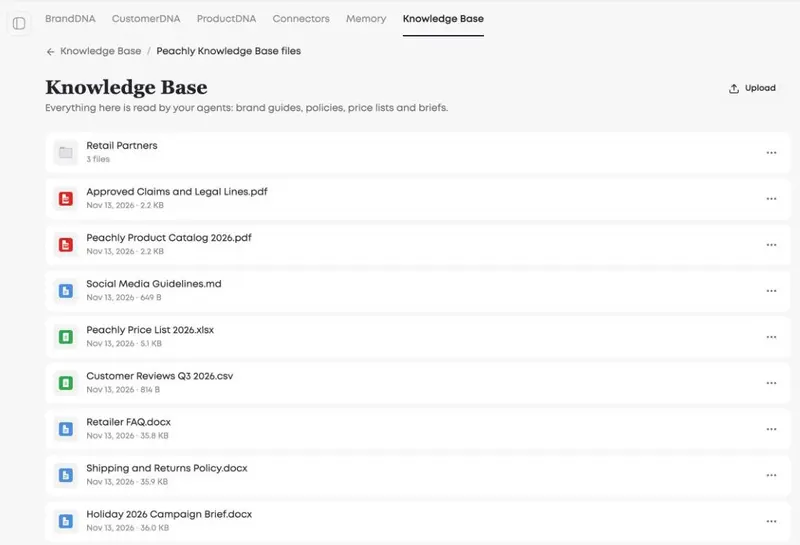
Click a folder to open it, and use the path at the top of the page to go back up.
Manage What Is There
Each file has a … menu with Preview, Download, Rename and Delete. Deleted files go to Recently Deleted in Files, where they stay for 30 days.
The Knowledge Base drive itself is always there. Every brand gets one automatically, and it can't be renamed, moved or deleted. Who can upload, rename or delete inside it follows each person's role in the brand, so if you can't upload, ask a brand admin for access.
Point the Agent at a Document
Usually you don't need to. Ask your question and the Agent reads what it needs from Knowledge Base, then lists the documents it used in the reply. To be exact, attach the file with + in the composer, or name it in your request.
For example: "Write three Instagram captions for the holiday can, using only the claims in our approved claims document and the tone in our social media guidelines." The Agent reads both documents and keeps the captions inside what they allow.
Keep It Current
- Keep one current version of each document. Delete or rename old ones, so the Agent doesn't quote last year's prices.
- Group related files in folders, for example one per retailer or per campaign.
- Put documents the whole team relies on here rather than in My Drive. The Agent reads your My Drive only when you are the one asking.
Documents in Google Drive or OneDrive
If your documents live in Google Drive, or in OneDrive and SharePoint, connect them and the Agent can search them there too. See Connect Google Drive and Connect Microsoft 365.
Frequently Asked Questions
Is Knowledge Base separate from Files?
No. It is one shared drive inside Files, shown as its own step in DNA. A file you upload in either place appears in both.
I kept brand documents in Files before. Do I need to move them?
If your brand had a shared drive called Brand, it is now Knowledge Base, with its documents at the top level, so nothing needs to be uploaded again. Files in My Drive or in other shared drives stay where they are. Move the ones every agent should know into Knowledge Base.
Why didn't the Agent use a file I uploaded?
Check that the file has finished Reading and Indexing, and that you are in the right brand. Each brand has its own Knowledge Base.
Can the Agent change my files?
It doesn't overwrite them. When you ask it to edit or convert a file, it saves the result as a new file next to the original, and it never deletes a file in your drive.
Next Steps
Upload your brand guidelines, price list and approved claims to Knowledge Base, then ask the Agent a question that needs all three. For how the rest of Files is organized, see Files.
