
Browse Integrations
Connecting HubSpot to MorningAI takes one sign-in: go to DNA → Connectors, click Connect on HubSpot, and approve on HubSpot's own screen. The Agent can then work with your CRM and your marketing in the same conversation. It looks up contacts, companies and deals, checks how a campaign or marketing email performed, updates records, and saves marketing emails as drafts in HubSpot. Every change asks for your approval first.
Why Connect HubSpot to MorningAI
HubSpot holds two halves of the same story. The CRM knows who signed up, which deals are open and who owns them. The marketing side knows which campaigns went out and how each email did. Putting the two together usually means exporting a list, building a report, writing the follow-up somewhere else and pasting it back.
With HubSpot connected, you ask the Agent instead. It reads the contacts, deals and campaigns behind your question, writes the follow-up in your brand's voice from your DNA, and saves the result where your team already works: as a note on the deal, a task for the owner or a marketing email draft.
This is a personal connector. Each teammate connects their own HubSpot account, and the connection works across every brand they work in.
How to Connect HubSpot (Step by Step)
- Go to DNA → Connectors and click Connect on HubSpot.
- Sign in on HubSpot's screen. If you have access to more than one HubSpot account, choose the one you want MorningAI to use, then approve the connection.
- Done. The card shows Connected. Ask the Agent about a contact, a deal or a campaign.
What the Connection Unlocks
Once connected, you can ask the Agent to:
- Look up contacts, companies and deals, and pull a list or segment
- Report on campaigns, marketing emails and form submissions, with open, click and conversion rates side by side
- Trace closed deals back to the campaigns that sourced them
- Create and update contacts, set lifecycle stage and source, and add them to a list
- Add notes and tasks to records, such as a follow-up task for each deal owner
- Write a marketing email in your brand's voice and save it as a draft in HubSpot, with the right list as the audience
Try prompts like these:
- "How did our October campaigns perform? Put open, click and conversion rates in a one-page summary."
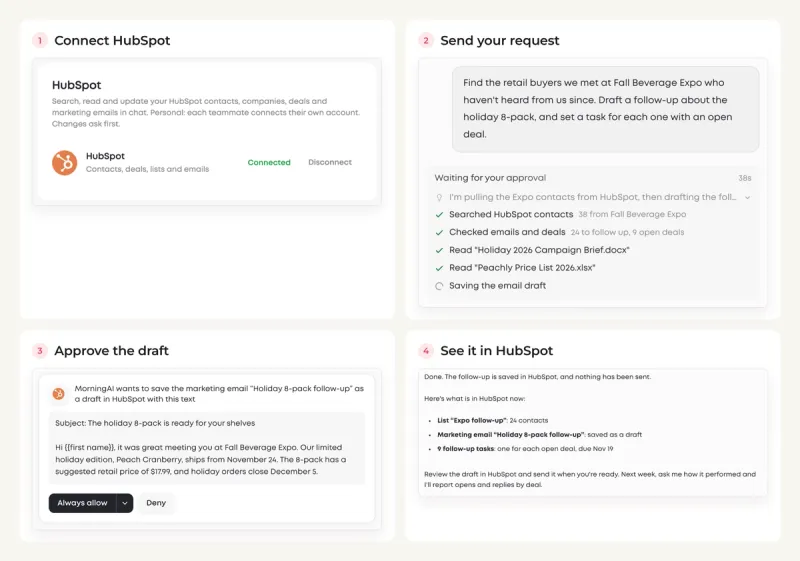
- "Find the retail buyers we met at Fall Beverage Expo who haven't heard from us since. Draft a follow-up about the holiday 8-pack, and set a task for each one with an open deal."
- "Which campaigns led to closed deals this quarter, and where should next quarter's budget go?"
Here is the second request from start to finish. The Agent finds the Expo contacts in HubSpot, checks who hasn't heard from you and which deals are still open, and reads the campaign brief and price list in your Knowledge Base. Then it asks before it saves anything in HubSpot.
What MorningAI Can and Can't Do
| MorningAI can | MorningAI can't |
|---|---|
| Read contacts, companies, deals, lists, campaigns, marketing emails and forms | Change a record without showing you an approval card first |
| Create and update contacts and lists, and add notes and tasks | Send a marketing email. It saves a draft for you to review and send in HubSpot |
| Write marketing email drafts from your DNA | Use a teammate's HubSpot access through your connection |
| Use HubSpot data alongside your files, analytics and other connectors | See your HubSpot password (you sign in on HubSpot's own screen) |
Your Data, Your Control
You approve the connection on HubSpot's own screen, so MorningAI never sees your password. The connection is personal: teammates can't use your HubSpot access through it, and the Agent can only do what your HubSpot account is allowed to do.
Changes ask first. A new contact, an updated record, a note, a task or an email draft each appears as an approval card before it is saved. When you disconnect, the stored credentials are deleted. You can also remove MorningAI from your HubSpot account's connected apps at any time.
For more on how MorningAI handles data across all connectors, see our security page at /resources/security.
Real-World Use Cases
Trade show leads, followed up the same week. Upload the lead list and ask the Agent to add it. It creates or updates each contact, sets the lifecycle stage and source, adds everyone to a list and creates a follow-up task for each owner, so the leads don't sit in a spreadsheet.
A one-pager before the buyer meeting. Ask for a one-pager on a retailer deal. The Agent reads the deal, the company and the notes, builds the page in your brand style and adds a note on the deal with the file.
CRM cleanup. Ask the Agent to find contacts with missing job titles or duplicate emails. It lists what it would change and updates the records once you approve.
Monday numbers without opening HubSpot. Schedule a Playbook that reads last week's new contacts and email results every Monday and gives you the summary.
Frequently Asked Questions
Can the Agent send emails from HubSpot?
Not on its own. It writes the email and saves it as a marketing email draft in HubSpot, with the list you chose as the audience. You review it and send it from HubSpot.
Can I use HubSpot and Apollo together?
Yes. Connect both and ask in one conversation, for example "Find 50 new prospects in Apollo and add them to HubSpot." The Agent checks HubSpot for existing contacts first, so it doesn't create duplicates, then adds the new ones with Apollo as the source.
Does my teammate need to connect too?
Yes. HubSpot is a personal connector. Each person connects their own account.
Next Steps
HubSpot is connected. Connect Apollo to find new prospects and load them into sequences, or set up a weekly HubSpot summary with a scheduled Playbook. See How to Create and Use Playbooks.
