
Choosing a visual style for your image generation is quick and easy inside MorningAI. Here’s how to do it in just a few steps:
1. Open the Text to Image Tool
From your Home screen, click on the Text to Image feature to start creating your image.

2. Select a Visual Style

Inside the Briefing Console on the left-hand side, scroll to the section called "Choose a style."You'll see two tabs:
- Brand: Your brand’s custom visual styles
- Standard: Pre-made visual styles available to everyone
Scroll through and click the one you want to use.
3. Search for a Specific Style (Optional)
If you’re looking for a specific visual style, you can also use the search bar in the briefing console to find it quickly by name.

4. Write Your Brief & Generate
Once you've picked your style, write your description in the Brief field, scroll down, and hit Generate.You can keep generating more images in the same style or try a different one by selecting a new style from the list.
Over 50 different Visual Styles Already Available
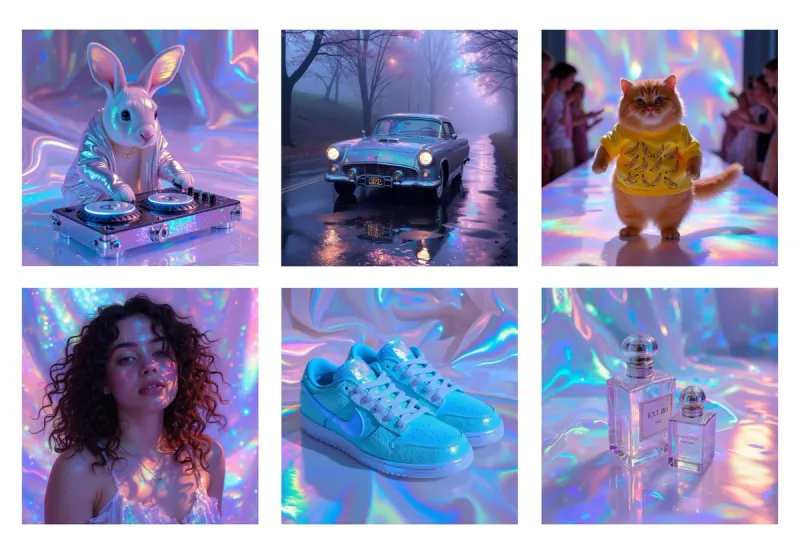
In our image generator, you have access to over fifty exclusive styles curated by some of the best Art Directors in the world. Here's the Holographic style as an example, which blends iridescent textures, vibrant lighting, and surreal subjects to create bold, futuristic visuals. This style is perfect for brands that want to stand out with a hyper-modern, eye-catching aesthetic.
Best Practices for using a style
- Start by describing the subject and scene you want, not the style
- Provide details such as "classic car on a wet road" or "cat with a yellow t-shirt on a runway"
- Write in natural language, you don't need to cram words together
Need Help?
If you have any issues downloading a file or need assistance, reach out to your Customer Success Specialist. They’ll be happy to guide you through the process.
What's new (May 2026)
Description-only styles in the picker
When you choose a style in Image Studio, text-only or description-only custom styles from Brand DNA now appear as selectable options, not only styles that already have a finished preview image. That lets you keep iterating on a look by name and description even before every preview asset is ready.
Setup and browsing
If you need to create or refine those styles, use Brand DNA → Visual Styles. The list and detail experience is easier to scan, with better empty states and clearer loading and error feedback while previews generate. See How to Create a Custom Style for a Brand for step-by-step help.

